
DPI Converter: Change Image DPI Online
Change JPG or PNG DPI to 72, 96, 150, 200, 300, 600, or a custom value. Keep the same pixels or resize for a target print size.
Upload an Image
Drop your JPG or PNG here, or choose a file.
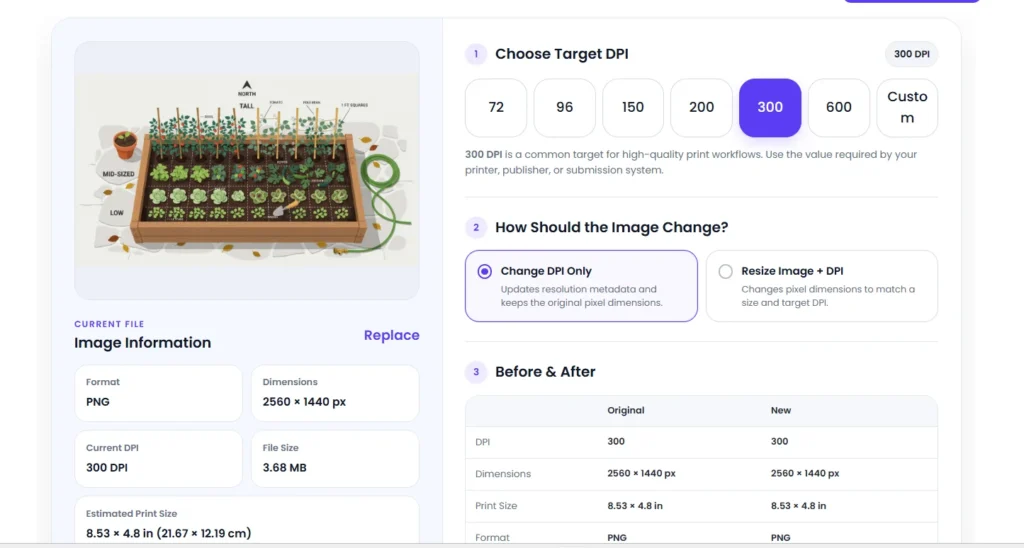
Choose Target DPI
300 DPI is a common target for high-quality print workflows. Use the value required by your printer, publisher, or submission system.
How Should the Image Change?
Set Output Size
Before & After
How to Use the DPI Converter
The DPI converter lets you change the stored resolution of a JPG or PNG, or resize the image when you also need a specific print size. Upload your file, review its current DPI and pixel dimensions, choose a preset such as 150, 200, 300, or 600, then select how the image should be handled.
- Upload a JPG, JPEG, or PNG image.
- Check the current DPI, dimensions, file size, and estimated print size.
- Choose a preset or enter a custom DPI.
- Select Change DPI Only to keep the same pixels, or Resize Image + DPI to change pixel dimensions too.
- Download the finished image.
Only need to inspect the file? Use PixConvio’s DPI Checker instead.
What the DPI Converter Actually Changes
Changing DPI does not automatically add detail to an image. In Change DPI Only mode, the pixel width and height stay the same while the stored physical-resolution value changes.
For example, a 2400 × 3000 pixel image remains 2400 × 3000 pixels after changing from 72 to 300 PPI without resampling. Its estimated print size changes because the same pixels are assigned to a different number of pixels per inch.
This is different from resampling. Resampling changes the actual pixel dimensions by adding or removing pixels.
Change DPI Without Resizing the Image
Use Change DPI Only when your image already has enough pixels and you simply need a different resolution value.
This mode is useful when:
- A printer or publisher specifies a resolution value.
- A submission system checks image-resolution metadata.
- You need to change photo DPI without altering pixel dimensions.
- You want to preserve the existing pixel data.
Changing 72 to 300 DPI in metadata alone will not make a blurry source sharp. The file still contains the same pixels.
Convert an Image to 300 DPI
300 PPI is a common target for high-quality print work, but it is not a universal requirement. Follow the specification given by your printer, publisher, lab, or submission system.
To use PixConvio as a 300 DPI converter, upload the image and select 300 DPI. Choose Change DPI Only if the current pixel dimensions are already suitable.
If you also need an exact physical size, use Resize Image + DPI. An 8 × 10 inch image at 300 PPI, for example, requires 2400 × 3000 pixels.
Resize an Image and Change DPI Together
When physical size matters, DPI and pixel dimensions work together.
The basic calculation is:
Pixels = inches × PPI
Examples:
| Print size | Resolution | Required pixels |
|---|---|---|
| 6 × 4 in | 300 PPI | 1800 × 1200 px |
| 8 × 10 in | 300 PPI | 2400 × 3000 px |
| 5 × 7 in | 200 PPI | 1000 × 1400 px |
PixConvio can calculate the required dimensions from inches, centimetres, or millimetres. Keep the aspect ratio enabled when you want to avoid stretching the image.
If the requested result needs more pixels than the source contains, resizing requires resampling. This creates new pixel data from the existing image, but it cannot restore detail that was never captured.
Does Increasing DPI Improve Image Quality?
Not by itself.
If you increase image DPI without resizing, the pixel count stays unchanged. A 1200 × 1200 pixel image is still 1200 × 1200 pixels whether its stored resolution is 72 or 300 PPI.
This distinction matters when choosing an image DPI converter. Changing a metadata value and increasing actual pixel resolution are two different operations.
DPI vs PPI
The terms are often used interchangeably in image tools, but they are technically different.
PPI, pixels per inch, describes how image pixels relate to physical size. DPI, dots per inch, more precisely describes printer output.
Because DPI is the familiar term used in many upload instructions and searches, PixConvio uses it in the tool while also showing pixel dimensions and estimated print size.
What DPI Should You Choose?
There is no single value that suits every file.
| Setting | Typical use |
|---|---|
| 72 or 96 | Legacy screen-related metadata or workflows that request it |
| 150 | Moderate-resolution print or document work |
| 200 | Forms, scans, or print workflows that request 200 |
| 300 | Common high-quality print target |
| 600 | Detailed or specialist workflows when required |
| Custom | Any exact value specified for your project |
For normal web display, pixel dimensions and file size usually matter more than stored DPI metadata.
JPG and PNG DPI Conversion
PixConvio supports JPG, JPEG, and PNG images.
JPEG files can contain density information in image metadata. PNG files can store physical pixel dimensions in an optional pHYs chunk. If an image does not contain usable DPI information, PixConvio reports that instead of inventing a value. You can still set a new DPI and download the updated file.
Using DPI Settings for Forms and Document Uploads
Online forms may specify several requirements at once, such as:
- Width and height in pixels
- Physical dimensions
- DPI or PPI
- JPG or PNG format
- Maximum file size
These values are related, but they are not interchangeable. A 300 DPI value alone does not tell you the image’s pixel dimensions or its size in KB.
Check the current requirements from the organization receiving the file, then enter those values in the tool.
Frequently Asked Questions
Can I change an image to 300 DPI online?
Yes. Upload a supported image, select 300 DPI, and choose whether to preserve the existing pixels or resize the image for a specific physical size.
Can I change DPI without changing pixels?
Yes. Select Change DPI Only. The stored resolution changes while the pixel width and height remain the same.
Does changing 72 DPI to 300 DPI improve quality?
Not by itself. If only the metadata changes, the image contains the same number of pixels.
What if my image has no DPI information?
You can still assign a new DPI. Some files do not contain physical-resolution metadata.
Can I change PNG DPI?
Yes. PNG is supported, including transparent PNG images.
Is 300 DPI always required for printing?
No. It is a common high-quality print target, but actual requirements vary.
Can I resize an image and change DPI at the same time?
Yes. Select Resize Image + DPI, enter the dimensions you need, and choose the target resolution. The tool calculates the required pixel dimensions.
Choose the Right DPI for Your Image
Use the DPI converter when you need to set a new resolution value, prepare an image for a particular print size, or meet a specific upload requirement. Check the requested DPI, dimensions, physical size, and format before converting so the downloaded image matches its intended use.